Pair the Devices
Pairing is the one-time step that connects your Mac and iPhone. In practice, it is just: show a QR code on the Mac, then scan it on the iPhone. Once that is done, the iPhone can open and continue the Codex work already running on your Mac.
QR is the easiest starting point. If you already use Codex comfortably on your Mac, the only extra things to think about are opening CodexPocketMac and scanning the QR code.
| Mac | iPhone |
|---|---|
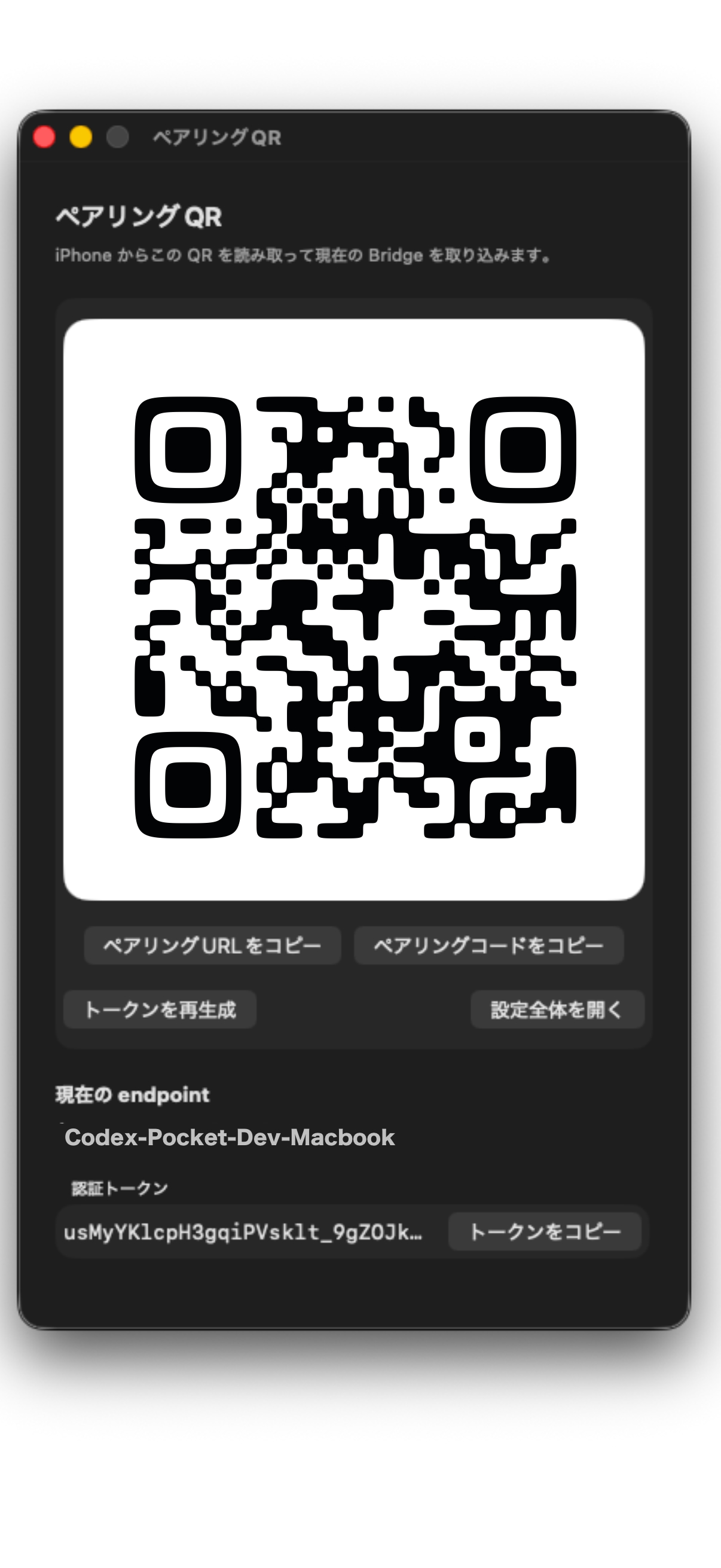 | 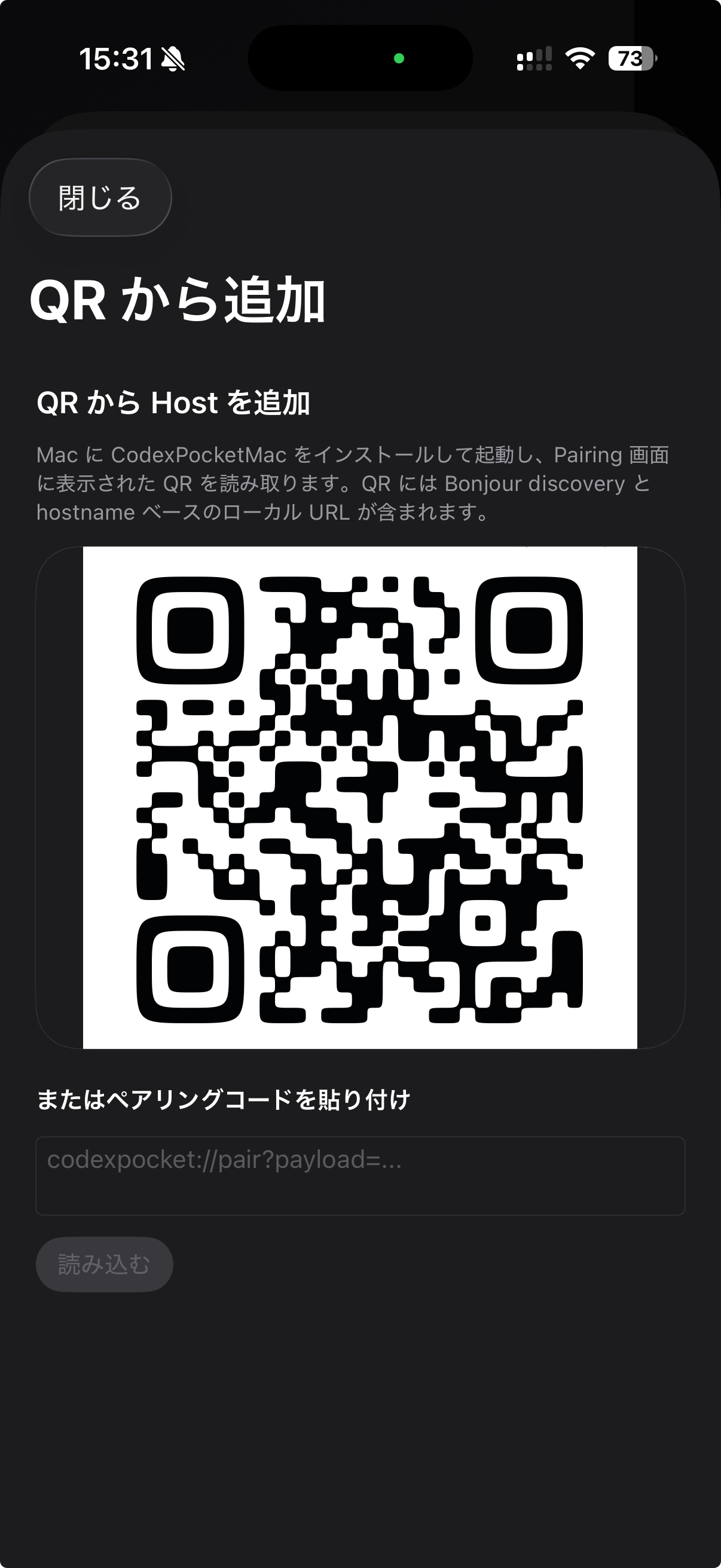 |
Before pairing
Check these on the Mac first:
CodexPocketMacis runningRuntimeinGeneralshows as running- If you want to use it immediately after pairing,
Projectsalready contains at least one project
Sometimes the Bridge is already running as soon as CodexPocketMac opens. If Runtime already says it is running, you can keep going.
On the Mac
- Open CodexPocketMac
- In
General, confirm thatRuntimeis running - Open
Pairing - Leave the QR code visible so the iPhone can scan it
The same screen also offers Copy Pairing URL and Copy Pairing Code. If you cannot use the camera on iPhone, those are valid fallback paths.
On the iPhone
- For the first Host, tap
Add from QRon the empty screen - For additional Hosts, open the sidebar, go to
Hosts, and chooseAdd from QRfrom+ - Allow camera access if needed
- Scan the QR code shown on the Mac
- Review the scan result
- Tap
Save as Host
If you are not using QR, the same screen also lets you paste a pairing code.
What happens after save
After saving, the iPhone automatically runs the initial setup:
- Bridge verification
- Project import
- Workspace preparation
- Host finalize
During this phase, the Host appears as Initial setup in progress in the Host list. It is safest to keep the iPhone app open until the Bridge check and first project preparation finish.
If the app goes to the background, iOS may pause the work. If that happens, reopening the app resumes it.
If QR is not available
You can use any of these instead:
- Open what
Copy Pairing URLcopied - Paste what
Copy Pairing Codecopied - If needed, use manual entry with a
Bridge URLandBearer Token
The pairing URL and pairing code both register the same underlying connection data on the iPhone. Manual entry is only necessary when you want to control the endpoint details yourself.
Security note
The QR code and pairing code include the token needed for the connection. After import, the token is stored in the iPhone Keychain and not left in normal app storage.
If you think someone else may have seen the QR code or code, regenerate the token from Pairing on the Mac and then import the Host again on the iPhone.