Connect Mac and iPhone
This section is for people who already use Codex on the Mac and want to keep following the work from an iPhone after stepping away from the desk.
In CodexPocket, the real work keeps running on the Mac. On the iPhone, what you do is add that Mac as a Host, then open the Project and Thread you want.
CodexPocketMac needs to be running on the Mac before this can work. If the Mac side is not ready yet, start with the Mac setup.
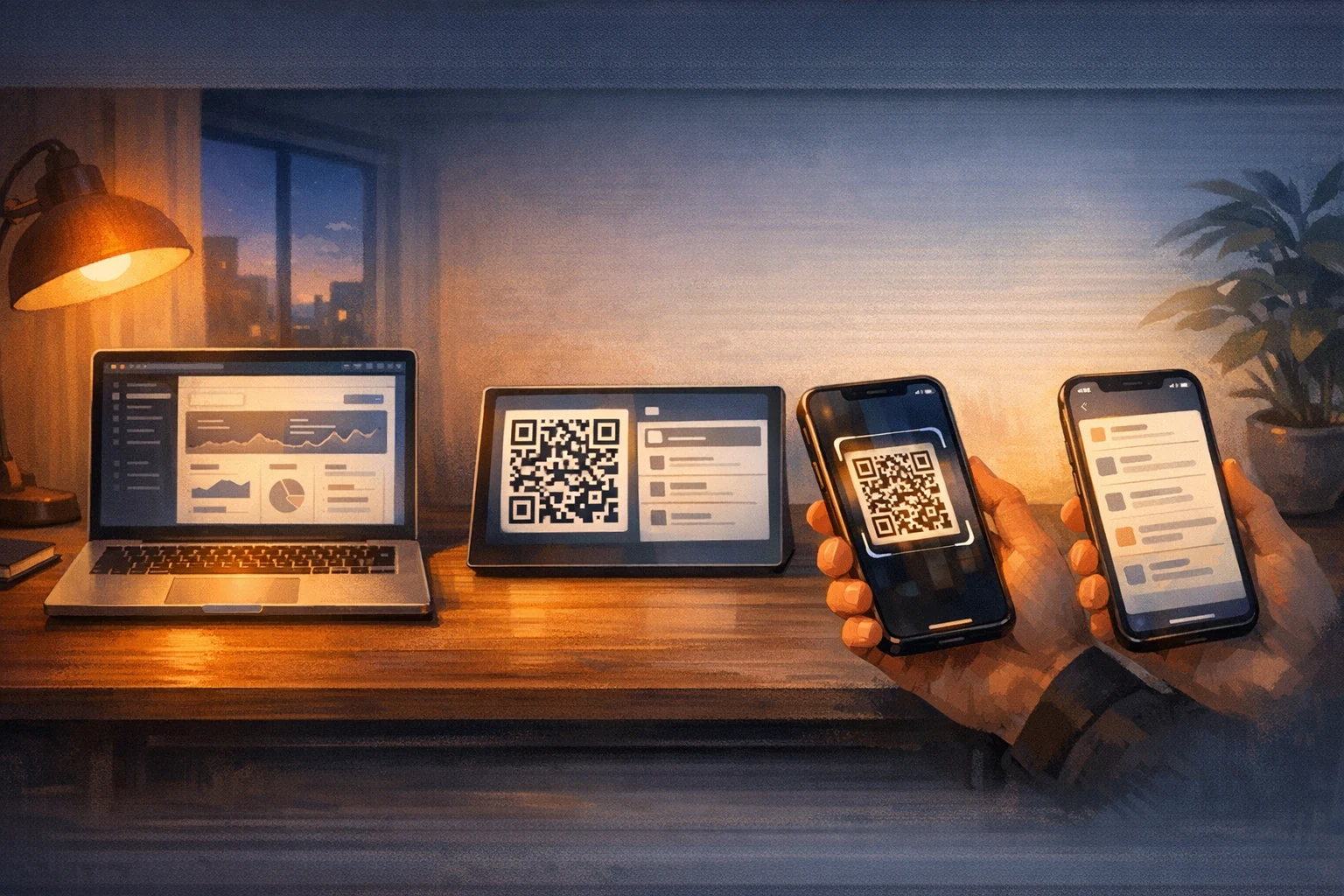
Find the right page fast
| If you want to... | Read this page |
|---|---|
| follow the QR-based linking steps in order | Pair the Devices |
| confirm whether the connection actually worked | Confirm the Connection |
| check LAN / Relay and port requirements | Network Requirements |
| troubleshoot a pairing failure itself | Cannot Pair |
| revisit the Mac-side setup first | Start on Mac |
What this section explains
- what happens during the first link
- the difference between
PairingandBridge - where to confirm that the link worked
- the network conditions for first setup and Managed Relay
The flow
- On the Mac, open
CodexPocketMacand confirm thatRuntimeinGeneralshows as running. - On the Mac, open
Pairingand show the QR code. - On the iPhone, open
Add from QRunderHostsand scan the QR code. - Tap
Save as Host, then wait for the iPhone to finish the initial setup. - Open the
Projectyou want and start or resume aThread.
Terms worth knowing first
PairingThe one-time registration step that sends the Mac endpoint and token to the iPhone.BridgeThe service that actually carries communication between the iPhone and the Mac. It keeps running on the Mac.HostThe Mac as it appears from the iPhone.ProjectThe working folder you open from the iPhone.
You do not need to overthink it. The simplest mental model is: register the Mac you already use for Codex on the iPhone.
What you can do after the link is done
- open a
Projectfrom the iPhone - resume an existing
Thread - start a new
Thread - follow the
Work LogandAnswer - use
Forkor branch switching when needed