Add a Host
This is the simple part: show a QR code on the Mac, then scan it with the iPhone. For the first Mac you add, this is the fastest and most reliable path.
In CodexPocket, a Host means the Mac your iPhone connects to.
| Mac | iPhone |
|---|---|
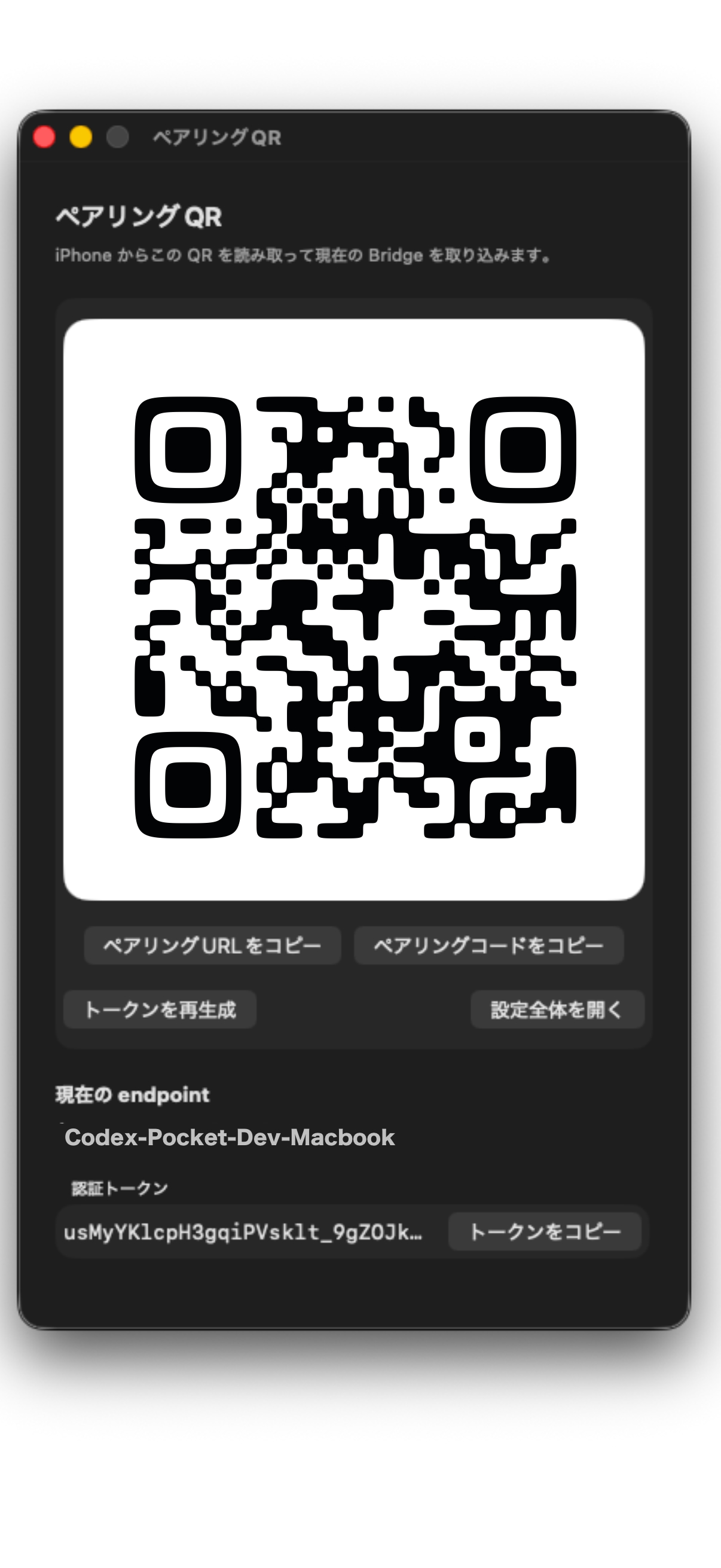 | 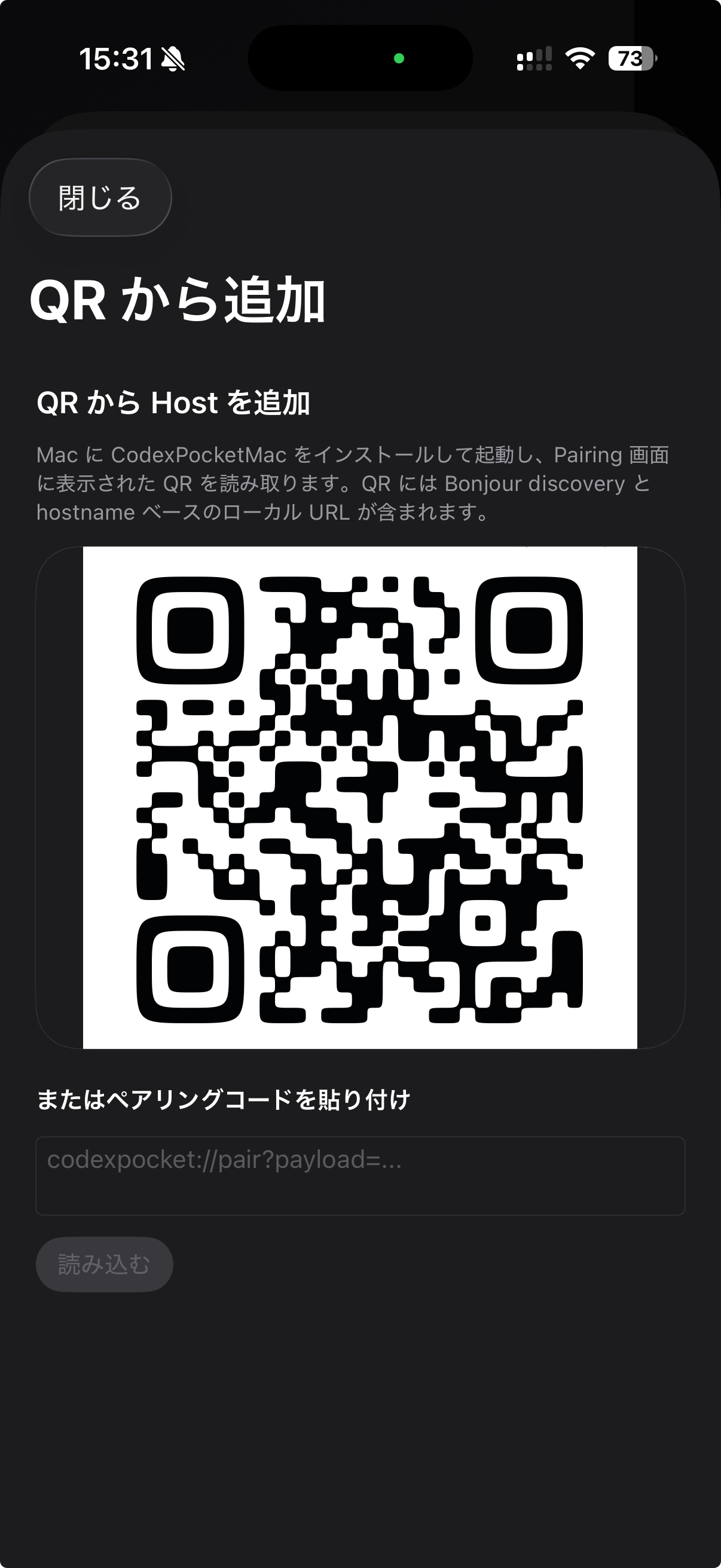 |
Before you start on iPhone
Make sure the Mac side is ready:
CodexPocketMacis runningBridgeshows as running- The
Pairingscreen can display a QR code - If you want to use it right away, the project you care about is already visible on the Mac
If any of that is still missing, check Mac App and Pair the Devices first.
Best path: add it with QR
For your first Host, start from Add from QR on the empty screen. If you already have a Host saved, open the sidebar, go to Hosts, and use the + button to enter the same flow.
- For the first Host, tap
Add from QRon the empty screen - For additional Hosts, open the sidebar, go to
Hosts, and chooseAdd from QRfrom+ - Scan the Pairing QR shown on the Mac
- Review the display name and endpoint
- Tap
Save as Host
After that, the Host is registered and the initial setup starts automatically.
What happens after save
The iPhone runs these steps in order:
Bridge verificationChecks whether the iPhone can reach the Bridge on the Mac.Project importPulls in the list of projects already registered on the Mac.Workspace preparationPrepares the first workspace and available threads.Host finalizeApplies what was imported and moves the Host into normal use.
While this runs, keeping the app in the foreground is the most reliable path. It can continue for a while in the background, but if iOS pauses it, opening the app again resumes the process.
If QR is not available
The same screen also supports these fallback paths:
- Paste a
Pairing Code - Use
Add Manually
If you add it manually, the main fields are:
Display NameBridge Hostor a directBridge URLBearer Token- Optionally
Default HostandNotes
Manual entry also lets you run a connection test before saving. Saved bearer tokens are stored securely in Keychain.
If you are just using CodexPocket on the same network, QR or a pairing code is usually enough. Manual entry is mainly there when you want tighter control over the endpoint details.
What to check after adding
- The connection state is visible under
Hostsin the sidebar Connection Testpasses when needed- Your Mac workspaces appear under
Projects Homeshows recent projects and the default Host
Once the projects appear, you can open one and continue your thread from there.