Setup Overview
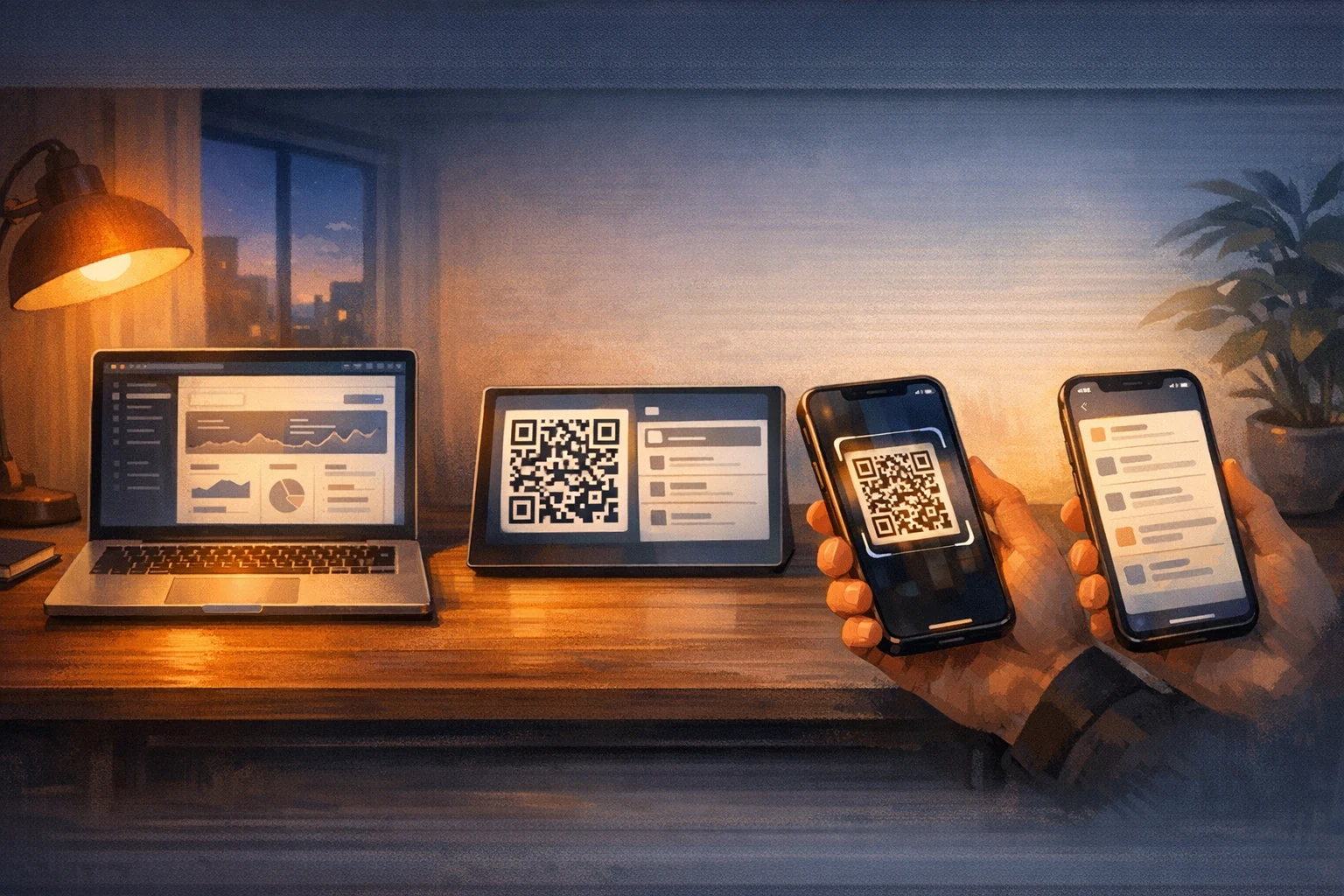
CodexPocket setup is really three steps: get the Mac ready, import that Mac on the iPhone, then confirm you can continue your work. It helps to think of it as making the Codex session on your Mac reachable from your phone, not building a separate environment on iPhone.
- Prepare the Mac
- Add the Mac on iPhone
- Confirm that projects and threads are visible
Find the right page fast
| If you want to... | Read this page |
|---|---|
| check only the prerequisites first | What You Need Before You Start |
| see which device combinations are supported | Supported Environments |
| go through the Mac-side setup in order | Start on Mac |
| see how to add the Host on iPhone | Get the iPhone App |
| look at the QR-based pairing flow | Pair the Devices |
1. Prepare the Mac
Start with the Mac side. That is where the real execution environment lives, so the iPhone mainly connects to what you already have there.
- Launch
CodexPocketMac - Confirm that
codexis available - If you use Codex App, add the workspace you want there
- Confirm that Bridge is running
If you do not use Codex App, add the project later from Projects on the iPhone after the Host is set up.
2. Add the Mac on iPhone
The recommended path is QR. Scan the QR code shown in Pairing on the Mac, and the iPhone imports both the endpoint and the authentication data in one step.
After import, the iPhone automatically runs:
- Bridge connectivity check
- Project list import
- First workspace preparation
- Host save
3. Confirm that it works
Once setup finishes, check these on the iPhone:
Homeshows the HostProjectsshows the Mac workspaces- Opening a project lets you create or resume a thread
Read these next
- For the full checklist, see What You Need Before You Start
- For supported device combinations, see Supported Environments
- For the Mac-side steps, read the
Mac Appsection in the sidebar from top to bottom
If you get stuck during connection, checking General, Projects, and Pairing on the Mac is usually the fastest way to narrow it down.